Your comment comes first.
Explain what you agree with, what you question, or how it changes your thinking.
Chrome extension · On your computer
Highlight an article. Choose a moment from audio or video. Add what you think, and keep it with the original.
Desktop Chrome · Beta · Manual install
Inside the extension

Articles
A mature tree can provide shade for several generations of residents. The benefits grow as the canopy grows.
Highlight a passage. The extension keeps the original words and source beside your comment.
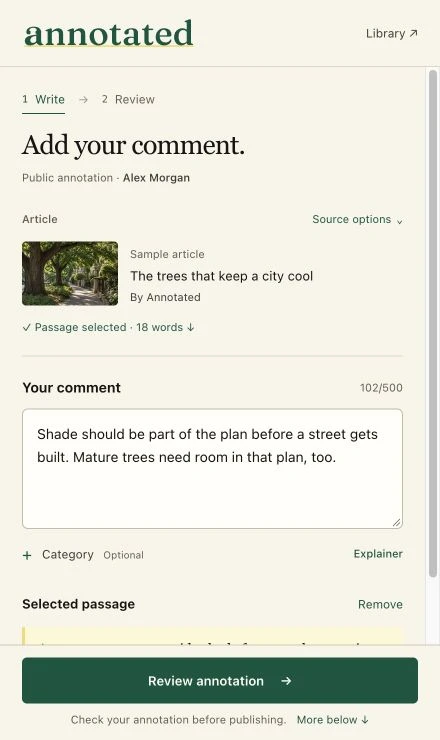
The point is your point of view
A link tells someone where to go. Your annotation tells them what you noticed.
Explain what you agree with, what you question, or how it changes your thinking.
Keep the passage or recorded clip beside your comment. For an X post, choose the live embed, a saved screenshot, or both.
Review the post before you publish. Add an optional category, then send someone the annotation’s link.
Make room in your browser
The extension is in beta. Download it once, then load the folder in Chrome.
Download extensionChrome 116+ · Desktop computer
Open the ZIP in Finder, then move the extracted folder into Documents. Chrome uses this folder, so keep it in place.
Enter chrome://extensions in Chrome’s address bar. Turn on Developer mode in the top right.
Choose Load unpacked and select the folder containing manifest.json. Select the extracted folder, rather than the ZIP file.
Use Chrome’s puzzle-piece menu to pin Annotated. Open an article, click the Annotated icon, and sign in from the side panel.
Highlight a passage in the article. Check the selected text in the panel, add your comment, then preview and publish. Open your annotation to get a page you can share.
To update an unpacked extension, replace the files in the same folder and click Reload on its card in Chrome’s extension settings. Chrome’s internal pages and some protected pages do not support annotation.
Articles, supported videos, and podcasts playing in Chrome. Highlight text or choose up to 90 seconds of supported media. Support varies by site; Chrome’s internal pages and some protected pages cannot be annotated.
Publishing from the extension creates a public annotation with your comment and source information. Review the post before publishing. For private podcast bookmarks, use the podcast app.
Yes, on supported players. Choose a moment, record it with sound when available, and preview it before sharing. Keep the source tab open while it records. Once the upload is confirmed, processing continues if you leave the page. Some protected or embedded players cannot be recorded.
Download the new version, replace the files in the same folder, and click Reload on Annotated’s card at chrome://extensions. Keep that folder in place while you use the extension.
The extension runs in desktop Chrome. The Annotated podcast app is available for iPhone and Android.